
Thank you for choosing Antelope Audio!
The activation of Discrete 8 Oryx is required to validate your product warranty.
Internet connection is required for successful product activation.
Step 1: Create an Antelope Audio User Account
To activate your device, you will need to have an Antelope account.
To create an account, please click here.
Existing users can log in here.
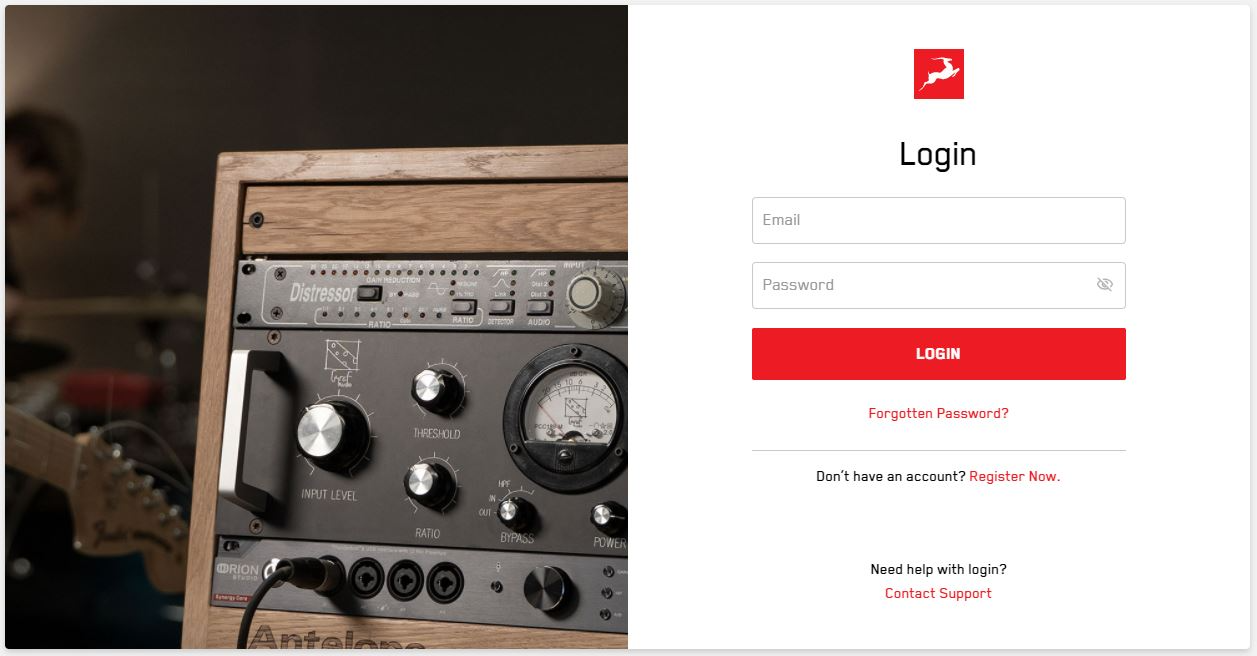
Step 2: Discrete 8 Oryx Activation
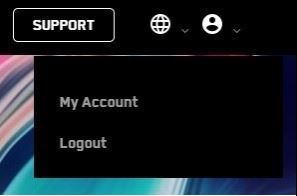
Once you have logged in, click on My Account in the top right to access the user Dashboard
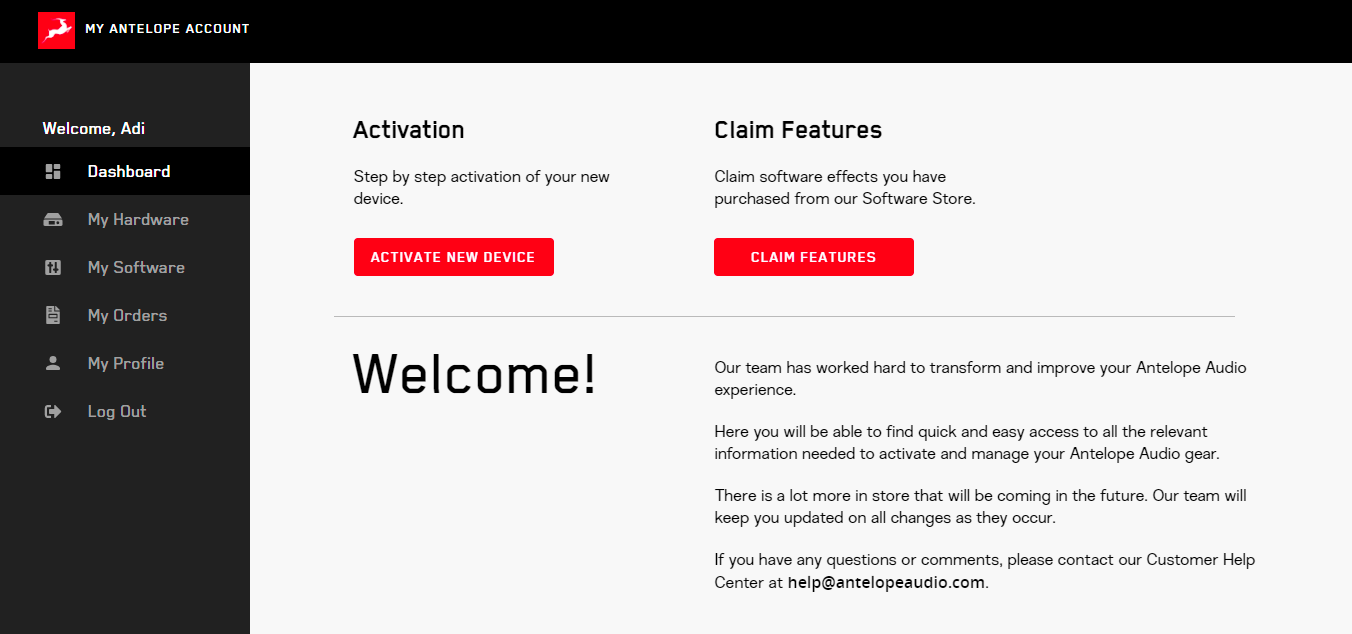
Click on the Activate New Device button on the main Dashboard.
Choose Discrete 8 Oryx from the device list: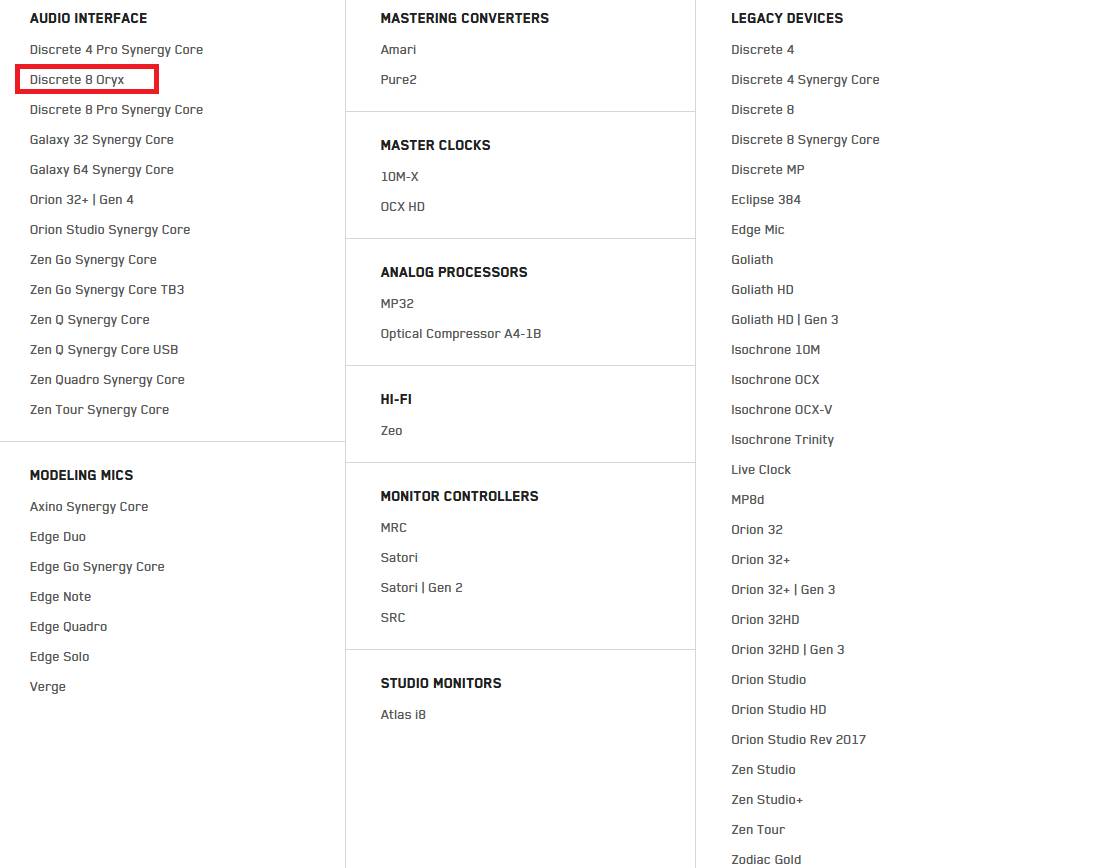
* If you already have the Antelope Launcher installed – make sure you are running version 3.3.0 or later, as well as the latest available Manager Server version in the System tab. To update the Antelope Launcher, click Check for updates in the application’s settings menu.
Once in the Antelope Launcher, connect your Discrete 8 Oryx to your computer via the provided USB cable. Click the Activate button and follow the onscreen instructions.
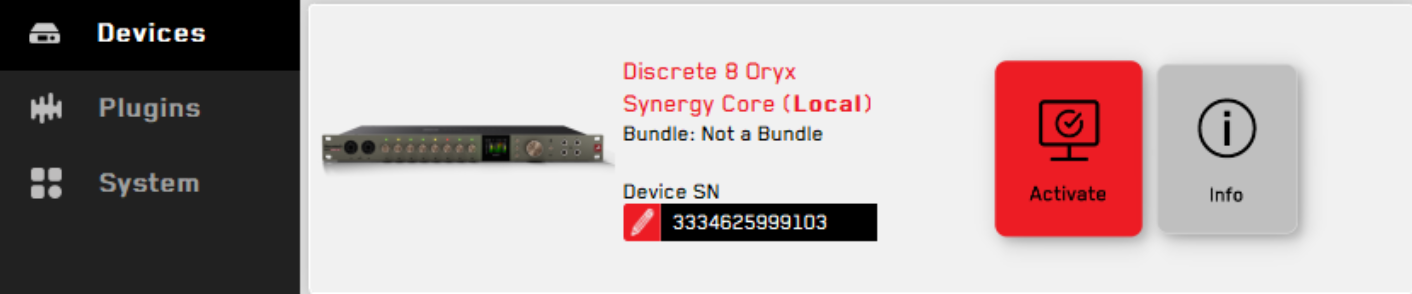
Step 3. After the device activation, click on "Manage Device" to install the latest software bundle. This step is mandatory to install the latest firmware and control panel for your device.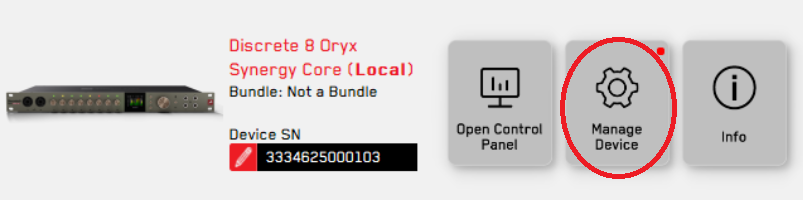
* On Windows – this step will also install the latest driver for your device. 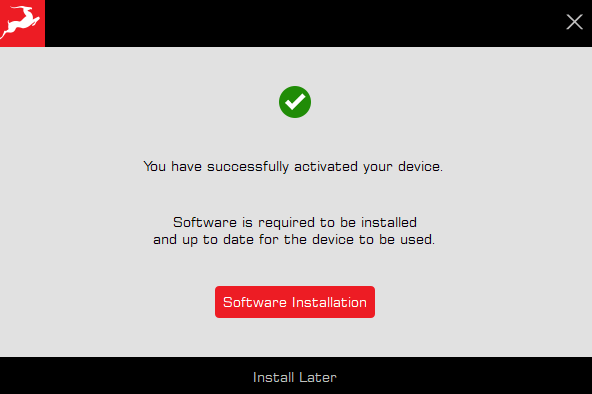
Step 4: Activate your product warranty
To activate your product warranty, navigate to the My Warranty tab in My Antelope Account.
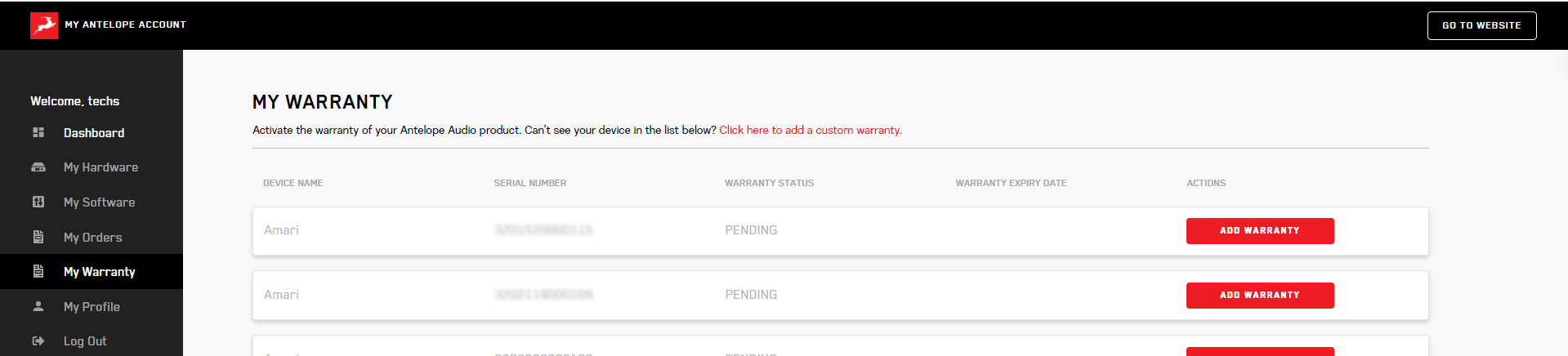
If you have successfully activated your product, it should now appear under My Warranty. Click on Add Warranty.
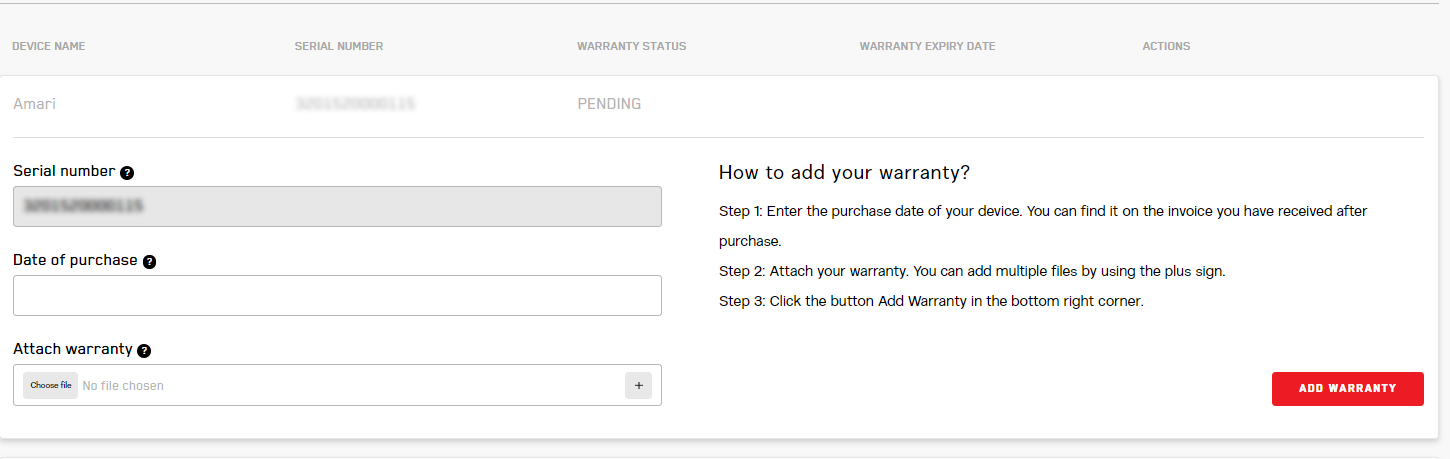
On the following screen you will be asked to enter information about your new device and to attach proof of purchase.
You can add multiple files (up to five) by using the plus sign.
Acceptable formats are .pdf, .jpg, .png, .jpeg, .heif, and the size limit is 7 MB per file.
Once you have completed the steps click Add Warranty.

After successfully completing the process, you can click on View Warranty to see if your file has been uploaded correctly.
You are set and ready to use your new remote!
Need any help?
Visit the Antelope Audio Customer Support page, choose your device and find the required information.